
How do I get access to Spirea?
- Look for the email invitation to join Spirea.
- Follow the link and sign in with your work email, Google SSO or Microsoft SSO.
- If your organisation already has an account, contact your administrator to be added.
- Accept the Platform Services Agreement and Data Processing Addendum when prompted.
- You may also create your Spirea account directly by accessing the registration portal using the link below: https://auth.thisisgain.com/login.
How do I connect Meta, TikTok or Google Ads?
- Click Settings at the bottom of the left sidebar.
- Under Spirea, select Meta Connections, TikTok Connections or Google Connections.
- Click Add Meta Connection, Add TikTok Connection or Add Google Connection in the top right.
- Sign in on the platform's own screen with an account that can access the ad accounts you need.
- Approve the requested permissions.
- Return to Spirea and open the Linked Accounts tab.
- Confirm that the account appears and check its sync status.
Repeat these steps for each platform you advertise on.
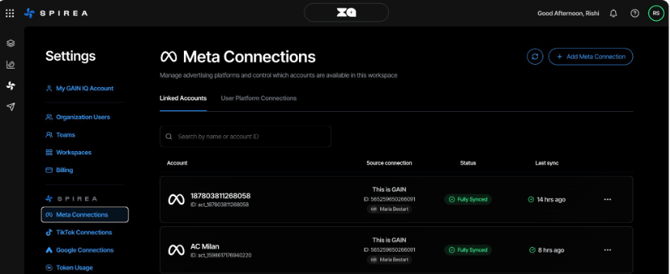
What do the connection tabs show?
- Linked Accounts shows the ad accounts available in the workspace and their sync status.
- User Platform Connections shows the auth`orised platform logins and who authorised them.
An ad account does not appear:
Check that the platform profile you used has access to the account in Meta Business Manager, TikTok Ads Manager or Google Ads. Spirea can only display what that platform login can see. Also confirm that you are viewing the correct workspace, because accounts are attached per workspace.
What if I want to switch connected ad accounts?
If you need to switch the ad account connected to Spirea, contact support at support@iq.thisisgain.com and ask for your existing ad account connection to be removed. Once the connection has been removed, you can connect your new ad account
For account security and to help prevent misuse, Spirea supports one connected ad account at a time. This helps ensure that creatives and other activity are generated for the correct ad account.