
NOTE: Spirea Studio is currently in Alpha development. Features and output may not be fully representative of the launch version coming soon. For more information please contact us at iq.support@thisisgain.com.
How do I manage generated creatives?
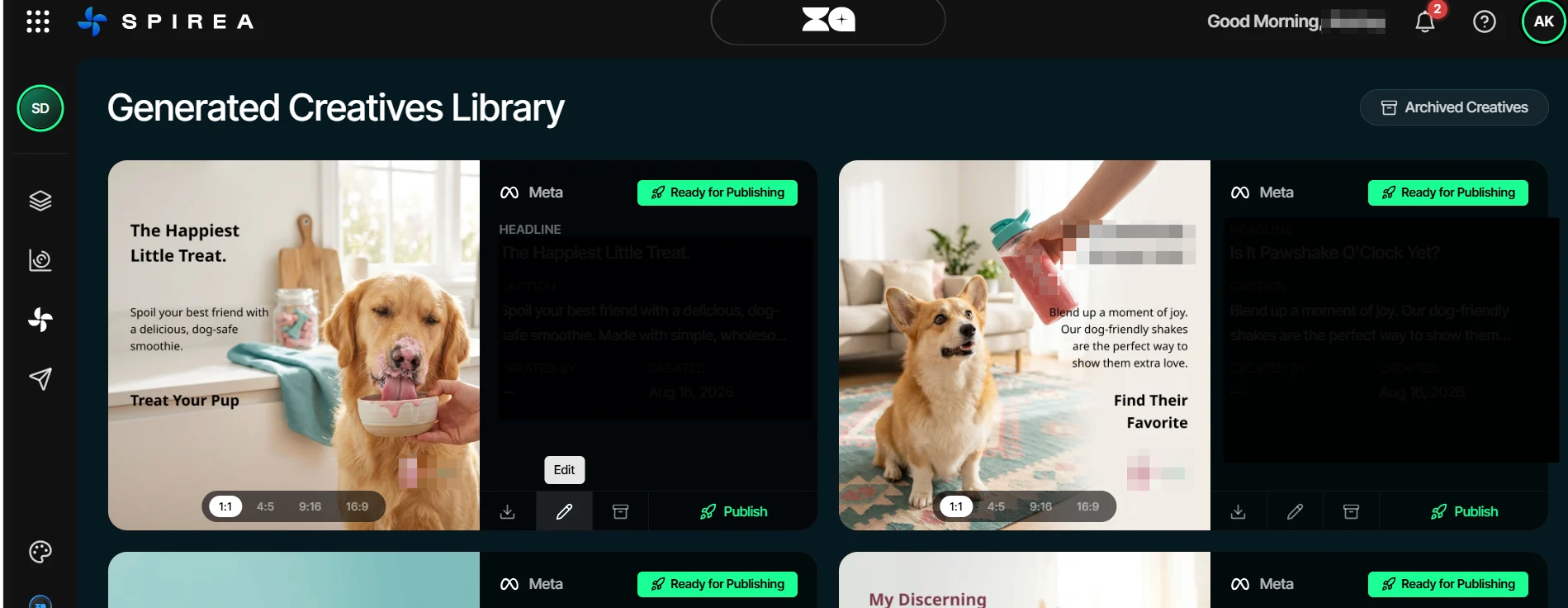
From each creative card, you can:
- Edit the creative.
- Download a ratio.
- Publish it.
- Archive it.
How do I edit a creative?
- Open the Library.
- Select Edit on a generated creative.
- Choose the aspect-ratio tab you want to edit.
- Select an element from Layers on the left.
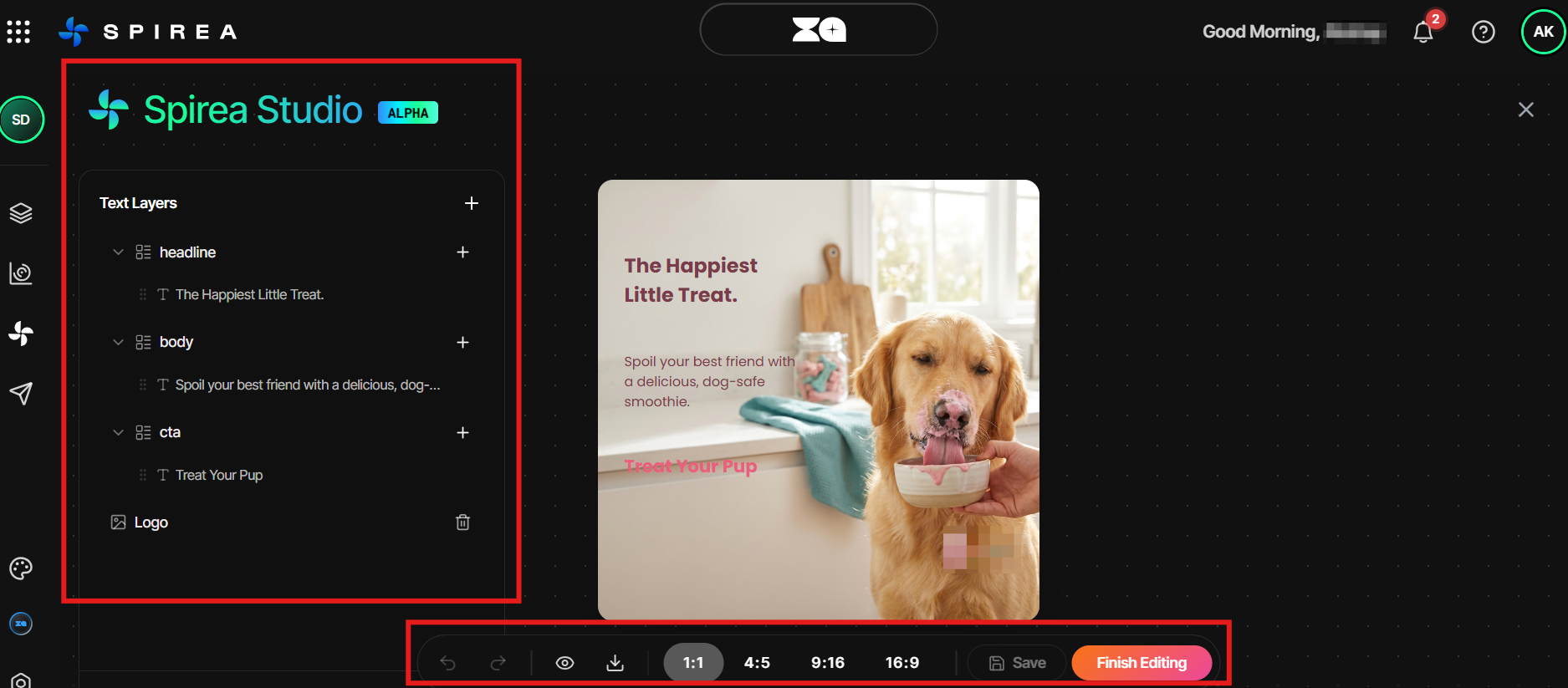
- Edit the selected element in the live canvas.
- Use the text properties panel on the right to change font, size, colour or alignment.
- Review each aspect-ratio tab before downloading.
The Editor has three panels:
- Layers lists every element and lets you select elements behind others.
- Live canvas shows the creative for the selected aspect ratio.
- Text properties controls the selected text element.
Work autosaves. Use Ctrl+S on Windows or Cmd+S on Mac to save manually. Undo and redo are available.
Can I create more formats later?
Yes. From the Editor, generate any remaining formats that were not produced in the first pass, then download each ratio as needed.
How do I open creative performance details?
Click a creative from a dashboard or Creative Performance to open its detail view. The left side shows the asset and copy; the right side shows performance, including aggregate spend, CPA, ROAS and CPC, a per-ad breakdown and a colour-coded fatigue score.
The detail view also shows platform, account and active-ad count, automatically detected Format, Hook, Angle and Concept tags, Learning progress for new creatives and a Create Variants action.