
How do I publish a creative?
- Start from Publish on a creative, or select Publish in the sidebar.
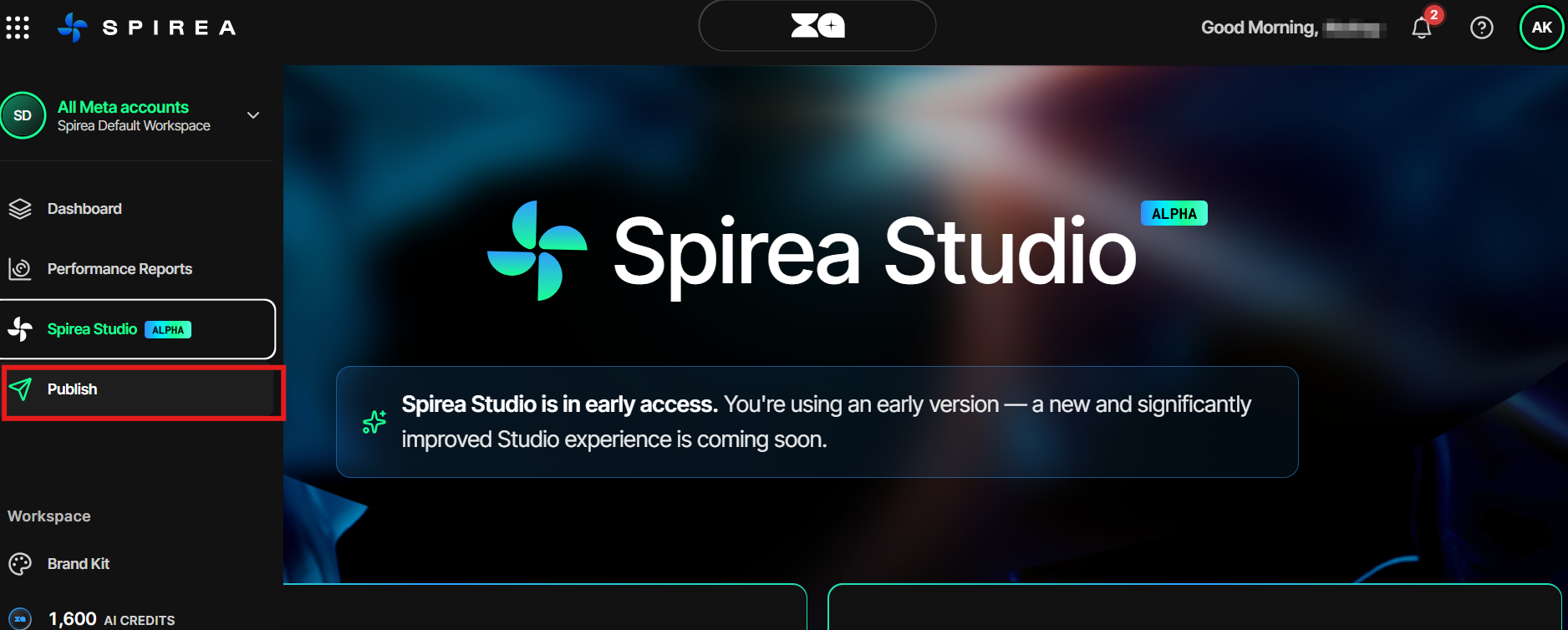
- In Overview, confirm the creative is ready.
- In Select creative, choose the creative. Its aspect ratios and starting copy are included automatically. Choose the correct variant before starting because variants cannot be swapped inside the wizard.
- In Campaign & ad set, filter by ad account, search for the campaign, expand it and select one or more ad sets.
- In Select page, choose the Facebook or Instagram Page for each ad set. A linked Instagram account fills in automatically.
- Confirm the ad name. The
{creative_name}and{adset_name}tokens are supported. - In Review copy, check primary text up to 125 characters, headline up to 40 characters, optional description up to 90 characters, call to action and destination URL. Use Apply to all ads when publishing to multiple ad sets.
- In Review placements, inspect previews across Meta surfaces. Automatic, or Advantage+, placements are used unless the ad set targets specific placements.
- In Confirm, review the summary and choose Active or Paused.
- Complete the final confirmation.
Note: Paused is the safe default. Nothing goes live before the final confirmation step.
Troubleshooting: The published ad is not running
- Check whether you chose Live or Paused.
- Check the health flag on the ad set. A paused or misconfigured ad set is the most common cause.
- Check the success screen for Meta Ad IDs. Failed uploads can be retried individually.
- Allow a sync cycle before expecting the new ad to appear in Spirea reporting.
New ads appear in Learning for a few days before Spirea judges them for fatigue.